6. Knowledge Base
A Knowledge Base (also called a Vector Store) is a searchable collection of documents. You upload files — typically PDFs, text documents, or other reference material — and Flusso indexes them using vector embeddings. Your AI agents can then perform semantic search against the Knowledge Base to retrieve relevant excerpts and include them in their context.
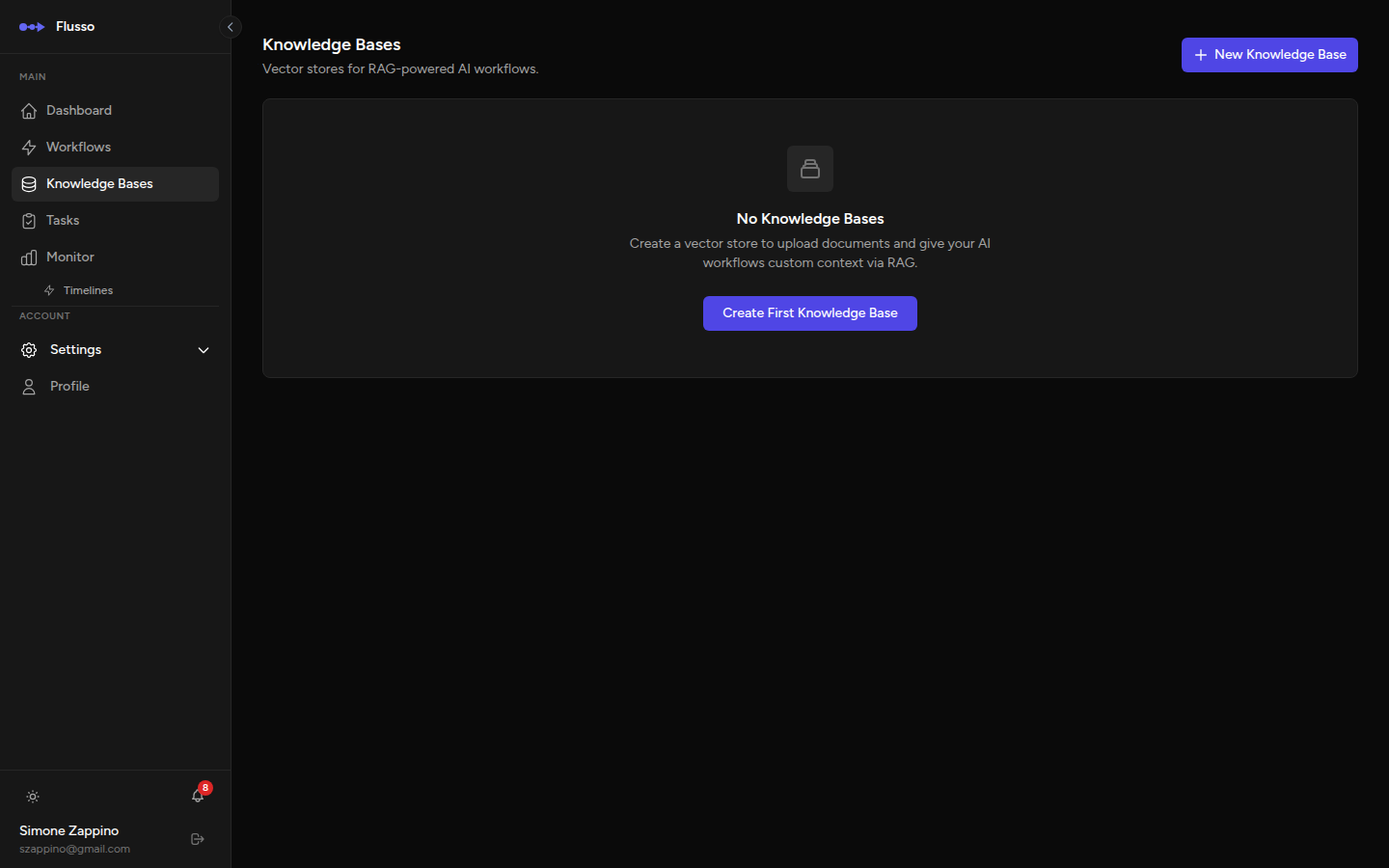
What Is a Knowledge Base?
When you upload a document to a Knowledge Base, Flusso:
- Splits the document into smaller chunks (passages of text).
- Converts each chunk into a vector embedding — a numerical representation of its meaning.
- Stores the embeddings in Qdrant, a high-performance vector database.
When your workflow executes a RAG node, it converts the search query into a vector and finds the chunks that are most similar (semantically closest) to the query. Those chunks are returned as structured results that your Agent node can read and use in its answer.
Creating a Knowledge Base
-
Click "Knowledge Bases" in the sidebar The list page opens showing all your existing Knowledge Bases.
-
Click "New Knowledge Base" A creation form opens.
-
Enter a name Choose a descriptive name that reflects the content (e.g. "Product Documentation", "Company HR Policies", "Support Articles").
-
Click "Create" The Knowledge Base is created and you are taken to its detail page where you can upload documents.
Knowledge Base Detail Page
The detail page for a Knowledge Base shows all documents that have been uploaded, along with their processing status.
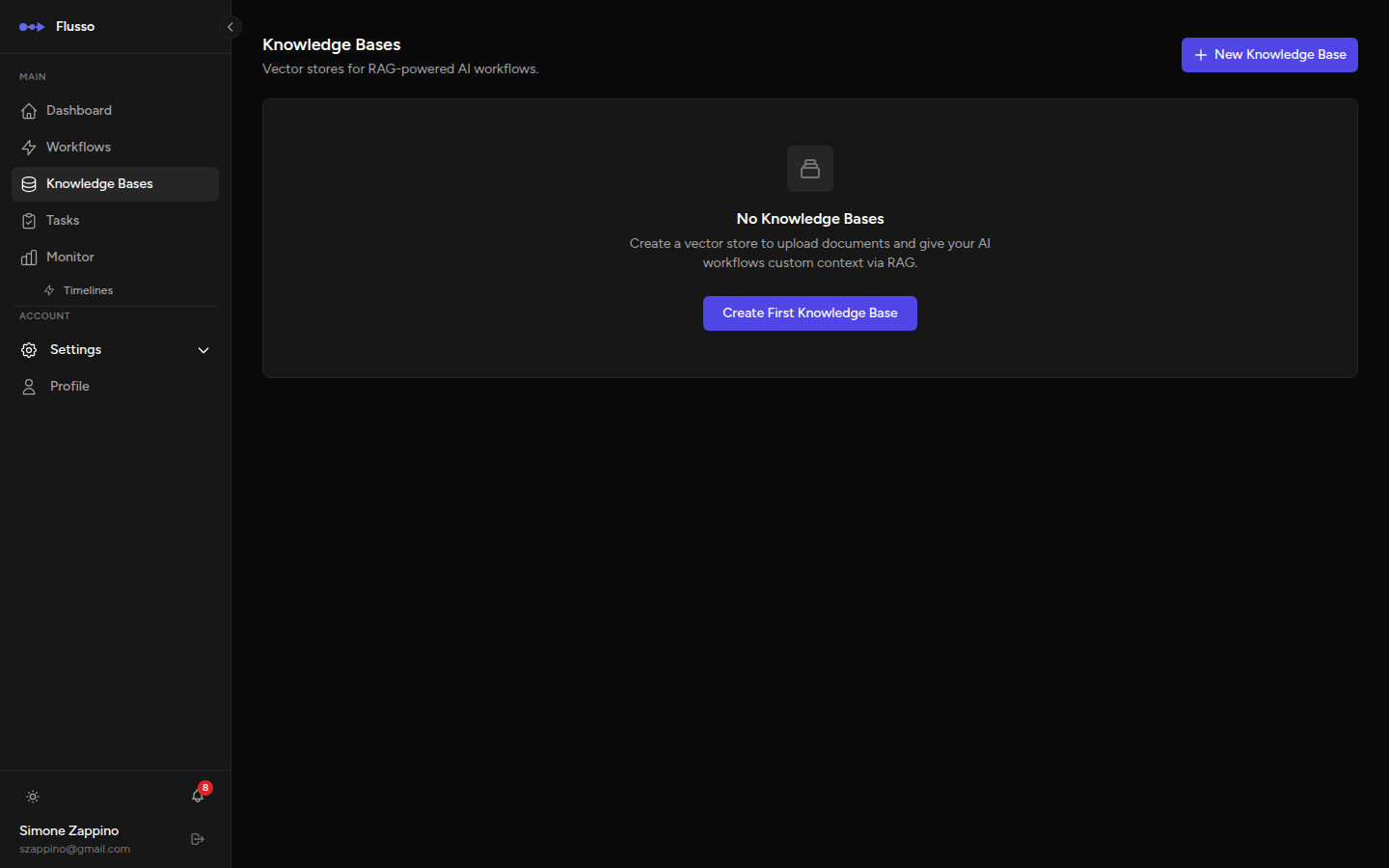
Uploading Documents
-
Open the Knowledge Base Click on a Knowledge Base card from the list to open its detail page.
-
Click "Upload Document" A file picker opens.
-
Select your file PDF files and plain text files are supported. For PDFs, Flusso extracts the text from each page automatically.
-
Wait for indexing to complete The document status changes from Pending to Processing and finally to Completed when the document is ready to search. Large PDFs may take a minute or two to process.
Document Statuses
| Status | Meaning |
|---|---|
| Pending | The document has been uploaded and is queued for processing. |
| Processing | Flusso is currently extracting text, splitting into chunks, generating embeddings, and storing them. |
| Completed | The document is fully indexed and available for semantic search. |
| Failed | Processing encountered an error (e.g. password-protected PDF, corrupted file). Try uploading again or use a different format. |
Using a Knowledge Base in a Workflow
Once a Knowledge Base contains indexed documents, it can be searched from a workflow using the RAG node. The RAG node performs a semantic search and returns the most relevant chunks to your Agent node.
Typical RAG Pattern
The most common pattern is:
- A trigger provides a user question (e.g. from a webhook or a Manual Input step).
- A RAG node searches the Knowledge Base using the question as the query.
- An Agent node receives the RAG results via its Context Sources setting and uses them to formulate a grounded, factual answer.
Deleting Documents & Knowledge Bases
To delete a single document, click the Delete icon next to it in the document list. The document and all its indexed chunks are removed from the vector store permanently.
To delete an entire Knowledge Base, click the Delete button on the Knowledge Base card in the list view. This removes all documents and the entire vector collection from Qdrant. This action cannot be undone.
Tips for Effective Knowledge Bases
- Keep documents focused: A Knowledge Base with documents on a single topic returns more relevant results than one with many unrelated documents.
- Use the threshold parameter: In the RAG node, set a minimum similarity threshold (e.g. 0.7) to avoid returning loosely related chunks.
- Enable Query Expansion for broad or ambiguous queries — it generates multiple reformulations of the question to improve recall.
- Use Diversity Mode when you want the results to cover different aspects of a topic rather than returning multiple similar excerpts.
- Add a Reranker after the RAG node for the best precision — it uses a cross-encoder to re-score the retrieved chunks based on true semantic relevance.
- Update regularly: Delete outdated documents and re-upload newer versions to keep your Knowledge Base current.