3.3 Integrations
The Integrations page is where you authorise Flusso to connect to third-party services using OAuth. Currently, Flusso supports Google OAuth, which enables the Google Drive and Google Sheets workflow nodes to read and write files on your behalf.
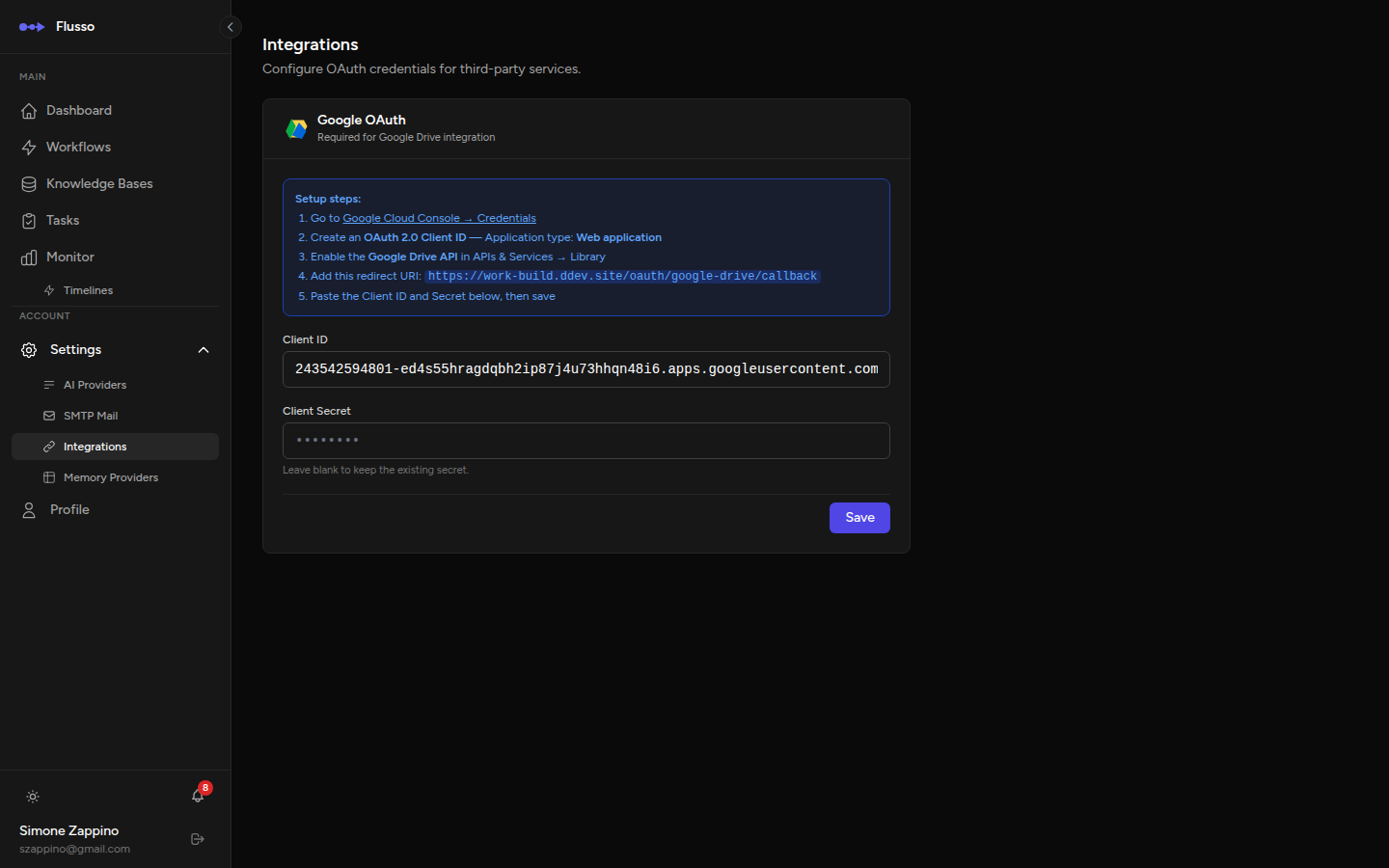
Google Integration
The Google integration enables these workflow nodes:
- Google Drive — read, write, and append files stored in Google Drive.
- Google Sheets — read and write spreadsheet data.
- Google Drive Watch — trigger a workflow when a new file appears in a watched folder.
- Questionnaire Google Sheets Export — automatically export questionnaire answers to a spreadsheet on completion (configured per completion node in the questionnaire editor).
What You Need
To set up the Google integration, you need a Google Cloud project with the Google Drive API enabled, plus OAuth 2.0 credentials (Client ID and Client Secret). Follow the steps below to obtain these.
Step-by-Step Setup
-
Create a Google Cloud Project Go to console.cloud.google.com, create a new project (or select an existing one), and note the project name.
-
Enable the Google Drive API In the Google Cloud console, go to APIs & Services → Library, search for "Google Drive API", and click Enable.
-
Configure the OAuth Consent Screen Go to APIs & Services → OAuth consent screen. Choose "External" (or "Internal" for Google Workspace), fill in the app name, support email, and developer email, then save.
-
Create OAuth Credentials Go to APIs & Services → Credentials → Create Credentials → OAuth client ID. Select "Web application". Under Authorised redirect URIs, add the callback URL shown on the Integrations page in Flusso.
-
Copy Client ID and Secret After creating the credentials, Google shows you the Client ID and Client Secret. Copy both.
-
Paste into Flusso Return to Settings → Integrations in Flusso. Paste the Client ID and Client Secret into the respective fields and click Save.
-
Authorise per Workflow OAuth tokens are authorised on a per-workflow basis. When you add a Google Drive or Google Sheets node to a workflow, open the Credentials drawer in the editor and click Connect Google Account to grant access for that workflow.
/oauth/google-drive/callback path.
Per-Workflow and Per-Questionnaire OAuth Credentials
Each workflow or questionnaire that uses Google services has its own OAuth token stored separately. This means you can connect different Google accounts to different workflows and questionnaires. To manage credentials for a specific workflow:
-
Open the workflow editor Navigate to Workflows and open the workflow you want to configure.
-
Click the Credentials icon In the editor header, click the key (🔑) icon to open the Credentials drawer.
-
Connect your Google account Click Connect Google Account. A Google OAuth consent screen will open in a new tab. Sign in and grant the requested permissions.
-
Confirm the connection After granting access, you are redirected back to Flusso. The Credentials drawer will show the connected account email and a green status indicator.
Disconnecting a Google Account
To revoke Flusso's access to a Google account for a specific workflow, open the Credentials drawer in that workflow's editor and click Disconnect. The stored token is deleted immediately and the Google Drive / Sheets nodes in that workflow will fail to execute until re-authorised.