🇬🇧 EN🇮🇹 IT
3.2 SMTP Mail
The SMTP settings page allows you to connect Flusso to an outbound email server. Once configured, the Email Notification node in your workflows can send emails to any recipient.
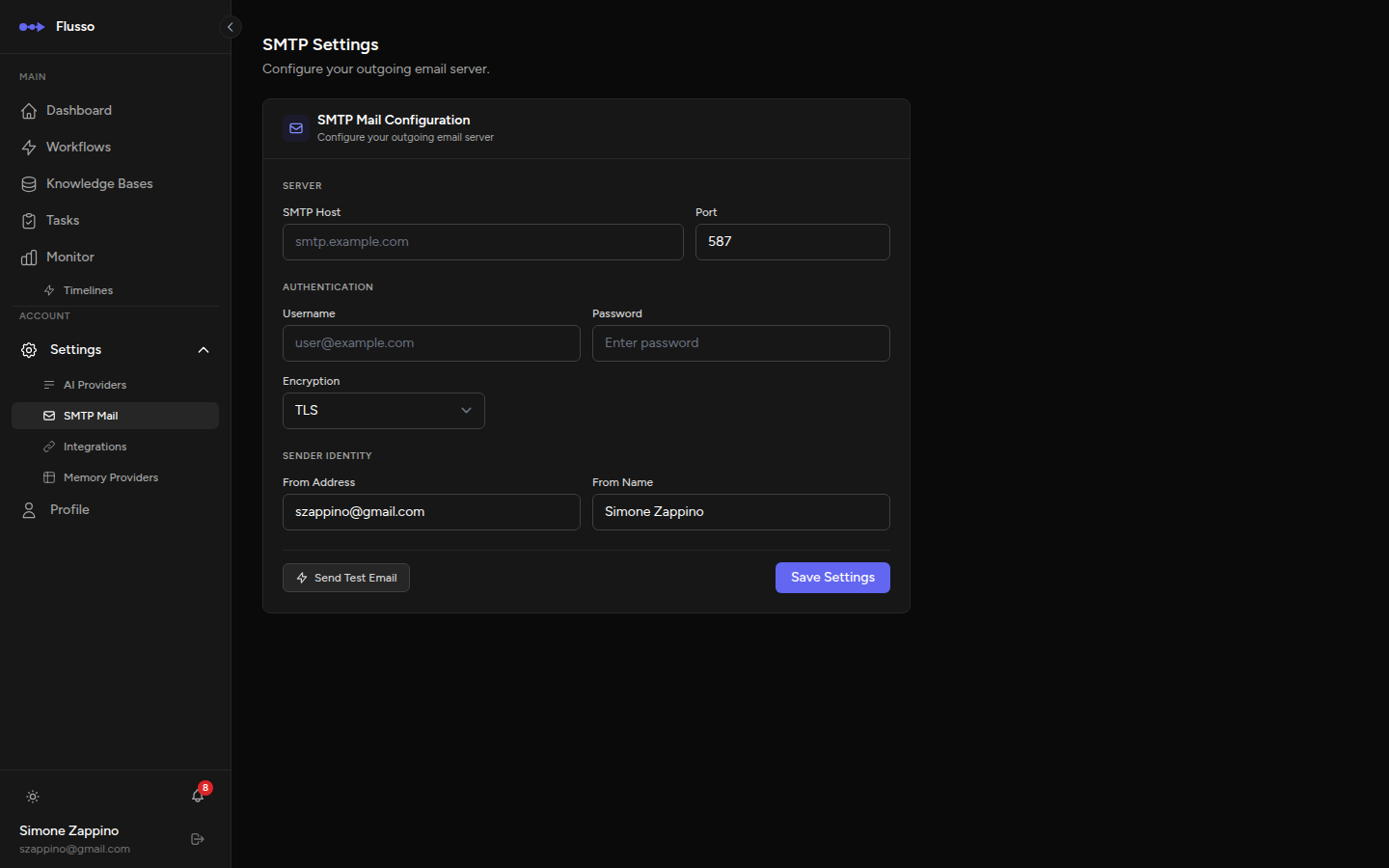
SMTP Configuration Fields
| Field | Required | Description |
|---|---|---|
| Host | Required |
The hostname of your SMTP server. Examples: smtp.gmail.com, smtp.sendgrid.net,
mail.example.com
|
| Port | Required |
The port your SMTP server listens on. Common values:
587 (STARTTLS / TLS), 465 (SSL), 25 (plain, not recommended).
|
| Username | Required |
The username used to authenticate with the SMTP server. Usually your email address
(e.g. notifications@example.com) or an API key for services like SendGrid.
|
| Password | Required | The password or app-specific password for the SMTP account. Stored encrypted. For Gmail, you must generate an App Password — your regular password will not work if 2FA is enabled. |
| Encryption | Required |
The encryption protocol: • TLS — recommended; uses STARTTLS on port 587. • SSL — uses direct SSL on port 465. • None — no encryption; only use on trusted internal networks. |
| From Address | Required | The email address that will appear in the "From" field of every email sent by Flusso. Must be authorised to send from your SMTP provider (e.g. a verified sender in SendGrid). |
| From Name | Optional |
The display name shown alongside the From Address in the recipient's email client.
Example: Flusso Notifications.
|
Testing the Connection
After filling in all fields and clicking Save, use the Test Connection button to send a test email to your own account. If the test fails, a detailed error message will display indicating whether the issue is with the host, port, credentials, or encryption settings.
Tip: Always test after saving. Many SMTP providers require specific port and
encryption combinations, and an error during a workflow run can be difficult to diagnose without
first confirming the connection is valid.
Common Provider Settings
Gmail (personal account or Google Workspace)
- Host:
smtp.gmail.com - Port:
587 - Encryption: TLS
- Username: your Gmail address
- Password: a Gmail App Password (generate at myaccount.google.com → Security → App Passwords)
SendGrid
- Host:
smtp.sendgrid.net - Port:
587 - Encryption: TLS
- Username:
apikey(literally) - Password: your SendGrid API key
Mailgun
- Host:
smtp.mailgun.org - Port:
587 - Encryption: TLS
- Username: your Mailgun SMTP username
- Password: your Mailgun SMTP password
Gmail note: If you are using a personal Gmail account, you must enable
"Less secure app access" or — preferably — generate an App Password. Gmail's standard password
will not work for SMTP authentication when 2-Step Verification is on.