3.5 WhatsApp Accounts
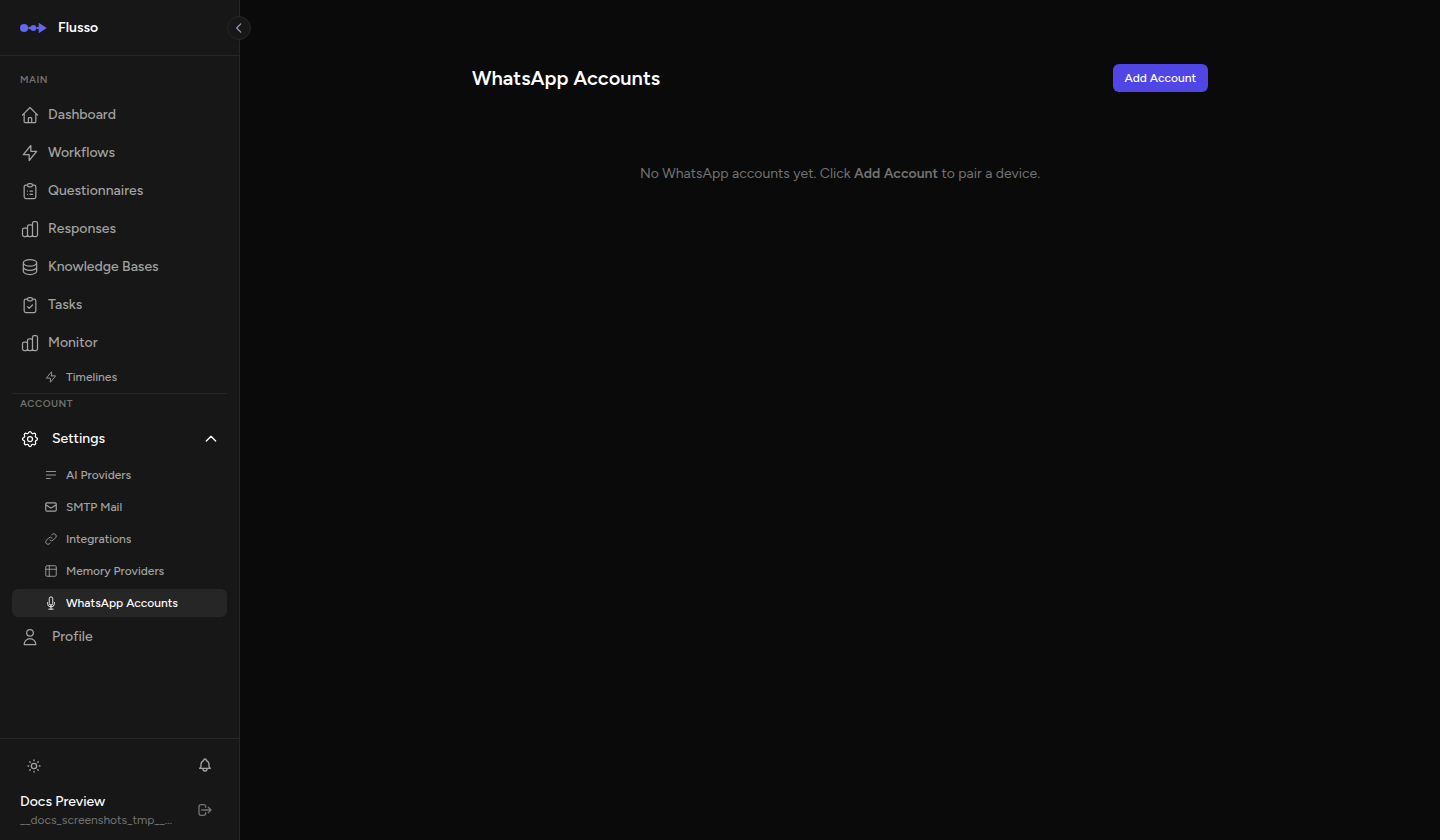
WhatsApp Accounts lets you pair one or more real WhatsApp accounts with your Flusso instance using the self-hosted Baileys gateway. Once connected, an account can be linked to a Questionnaire so that incoming WhatsApp messages are routed through it automatically.
How It Works
Baileys communicates with WhatsApp using the standard multi-device protocol. When you add an account, Flusso generates a QR code. You scan the QR code with the WhatsApp app on your phone (the same way you pair WhatsApp Web), and the account becomes connected. From that point, Flusso can send and receive messages on behalf of that account.
The connection is maintained by the Baileys gateway running inside your Flusso server process. If the server restarts or the session expires, the account status changes to disconnected and you will need to reconnect it.
Account Statuses
| Status | Meaning |
|---|---|
| pending | The account has been added and the Baileys gateway is initialising the session. No action needed — wait a few seconds. |
| qr_pending | A QR code has been generated and is displayed on the account card. Scan it with WhatsApp on your phone within the standard QR timeout (approximately 20 seconds). |
| connected | The account is paired and online. Flusso can send and receive WhatsApp messages through it. |
| disconnected | The session has ended (server restart, logout, or timeout). Click Connect to re-initiate pairing. |
| reconnecting | Flusso is attempting to re-establish the connection automatically. If reconnection does not succeed, the status will fall back to disconnected. |
Adding a WhatsApp Account
-
Click "Add Account" The add-account dialog opens. Optionally enter a display name to help identify this account (e.g. "Support Line", "Sales Bot").
-
Click "Connect" Flusso creates the account record and starts the Baileys session. The card briefly shows status pending.
-
Scan the QR code After a moment the card updates to qr_pending and a QR code canvas is displayed directly on the card. Open WhatsApp on your phone, go to Settings → Linked Devices → Link a Device, and scan the QR code.
-
Wait for confirmation The page polls every 2 seconds. Once pairing succeeds the card status changes to connected and the QR code is replaced by the linked phone number.
Account Card
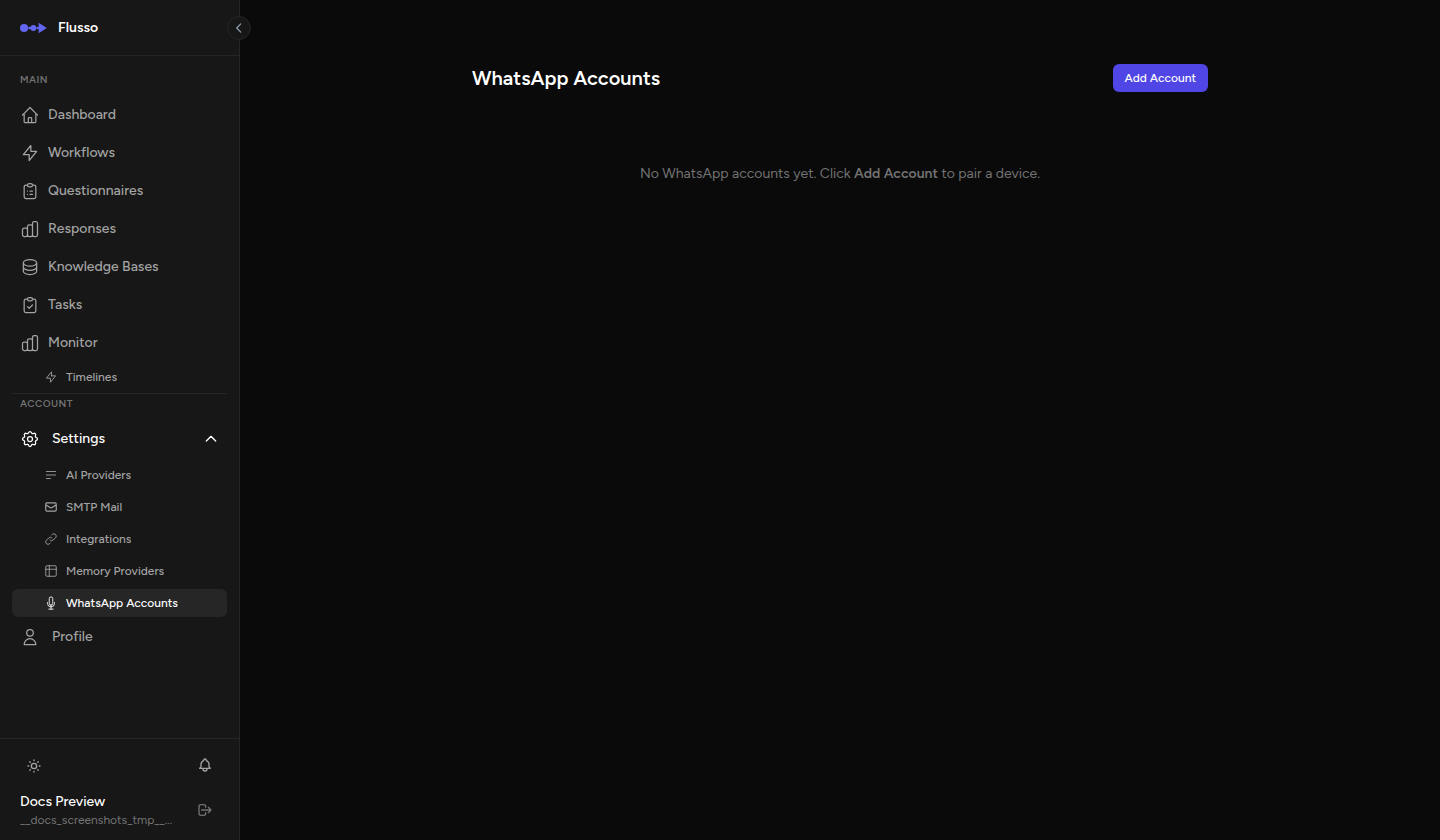
Each account is displayed as a card. The card shows:
- Display name — the label you chose when adding the account.
- Status badge — current connection status (updates live via polling).
- Phone number — shown once the account is paired.
- Linked questionnaire — the questionnaire this account is currently linked to, if any.
- QR code canvas — shown only when status is qr_pending.
Per-Account Actions
| Action | Description |
|---|---|
| Connect | Initiate (or re-initiate) the Baileys session. Use when the account is disconnected or the QR code has expired. Generates a new QR code. |
| Disconnect | Gracefully end the active session without deleting the account. The account status changes to disconnected. You can reconnect it later. |
| Refresh | Manually poll the Baileys gateway for the latest status. The page also auto-polls every 2 seconds when any account is in pending or qr_pending state. |
| Delete | Disconnects the session and permanently removes the account from Flusso. Any questionnaire linked to this account will lose its Baileys link and must be reconfigured. |
Linking an Account to a Questionnaire
Account-to-questionnaire linking is managed from the questionnaire editor, not from this page. Once a WhatsApp account is connected, it appears in the Baileys tab of the WhatsApp configuration drawer inside the questionnaire editor.
To link:
-
Open the questionnaire Navigate to Questionnaires, open the questionnaire you want to deliver via WhatsApp, and click the WhatsApp button in the editor top bar.
-
Choose the Baileys tab Switch to the Baileys tab in the WhatsApp drawer.
-
Select the connected account Choose the account from the dropdown. Only accounts with status connected are listed.
-
Click "Save Baileys Link" The questionnaire is now linked. The account card on this page will show the questionnaire name under Linked questionnaire.
Tips
- Use descriptive display names (e.g. "Customer Support — ES", "Lead Intake Bot") to distinguish accounts at a glance, especially if you manage multiple WhatsApp numbers.
- If you restart your Flusso server, check this page and reconnect any accounts that show disconnected. Baileys sessions do not always survive a server restart.
- Keep the WhatsApp Accounts page open when pairing a new account — the auto-polling updates the QR code and status in real time so you do not need to refresh manually.
- If status is stuck on pending for more than 10 seconds, try clicking Refresh to force a status poll, or click Connect again to restart the session.